PowerShell


Vous trouverez ici les quelques
commandes PowerShell qui vous permettent de se lancer rapidement dans le
PowerShell d’une manière simple et intuitive.
|
Get-Command –Verb Get, Get-Command –Noun, Get-Command –Syntax, Get-Command –CommandType |
|
|
Get-help, - ?, man |
|
|
|
|
|
Get-Location |
|
|
Get-process –name |
|
|
6) Afficher les membres, propriétés et méthodes,
d’une commande |
| Get-member *, | Get-Member -MemberType Property,| Get-Member -MemberType Method |
|
| format-List, format-List -property * | out-host –paging, | format-Table -property , Out-File |
|
|
|
|
|
Set-location –Path |
|
|
New-Item –Path , Rename-Item –Path, Move-Item –Path, Remove-Item, Invoke-Item |
|
|
\[ab]*, -Exclude *[b]* |
|
|
Get-PsDrive, Get-Psdrive -PsProvider, Set-Location HKLM:\software, New-PsDrive –Name , Remove-PsDrive –name |
|
|
New-Object –TypeName |
|
|
|
|
|
|
|
|
|
1) Lister les commandes sous PowerShell,
taper la commande:
Get-Command
a)
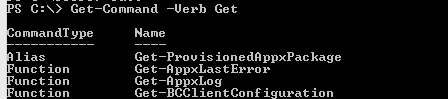
Lister les commandes qui commencent
par le verbe Get en utilisant l’option -Verb
Get-Command –Verb Get

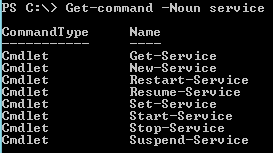
b) Lister les commandes qui contiennent le nom Service en utilisant
l’option –Noun
Get-Command –Noun service
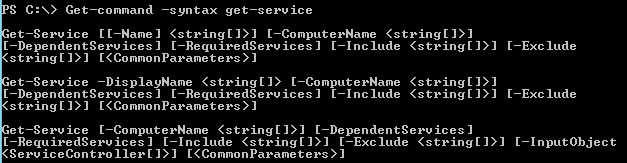
c)
Pour connaitre la syntaxe d’une
commande utiliser l’option –Syntax
Get-Command –Syntax Get-Service
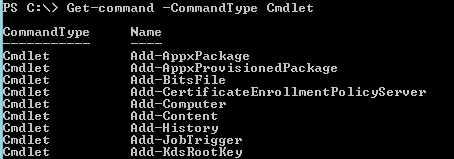
d)
Pour lister un type de commande,
utiliser l’option –CommandType
Get-Command –CommandType Cmdlet
Get-Command –CommandType
Alias
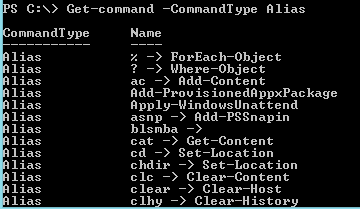
Get-Command –CommandType Function
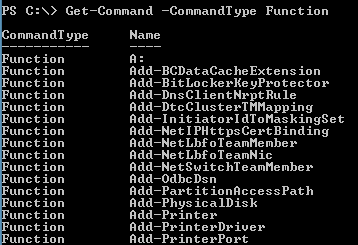
2)
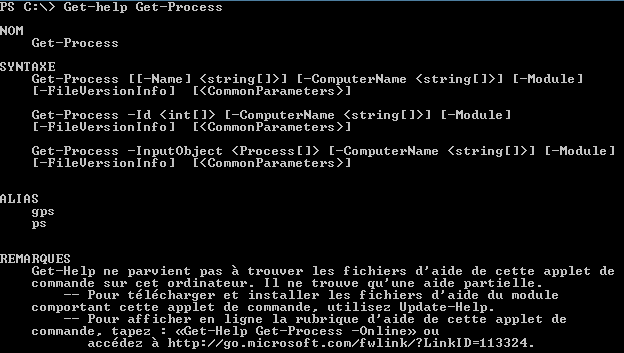
Aide en ligne
e)
Get-help
Get-help Get-Process
f)
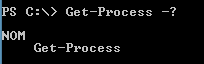
- ?
Get-Process - ?
g)
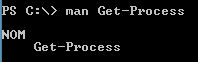
man
man Get-Process
3)
La commande pipeline | permet de créer
une chaîne de traitement
|
(commande 1) |
|
Sortie 1 = Entrée 2 (Utiliser | pour reprendre le résultat de
la première commande) |
|
Sortie 2 |


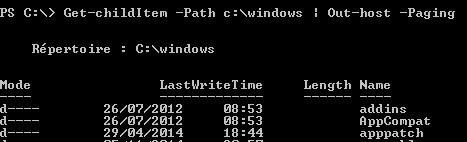
Get-childItem –Path c:\windows | Out-host –Paging
4)
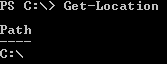
La commande qui permet d’afficher où
on est, Get-Location
Get-Location
5)
Obtenir de l’information sur un
processus à l’aide de la commande Get-process
Obtenir des informations sur le process powershell
Get-process –name powershell

Obtenir à la fois des informations sur
les processus powershell et notepad
Get-process –name powershell, notepad

Obtenir des informations sur tous les
processus en cours
Get-Process –name *

6)
Afficher
les membres, propriétés et
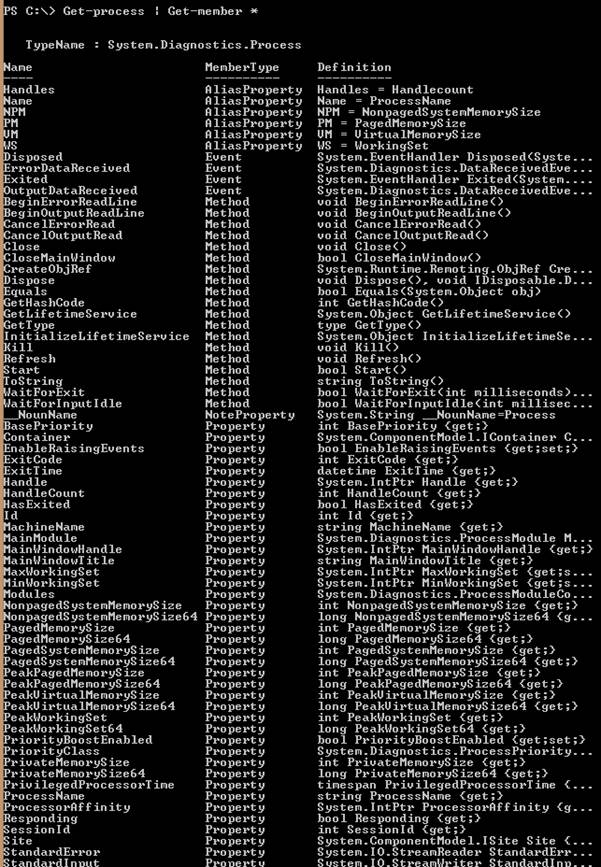
méthodes, d’une commande, | Get-Member *
Get-process | Get-member *
a)
Afficher uniquement les propriétés
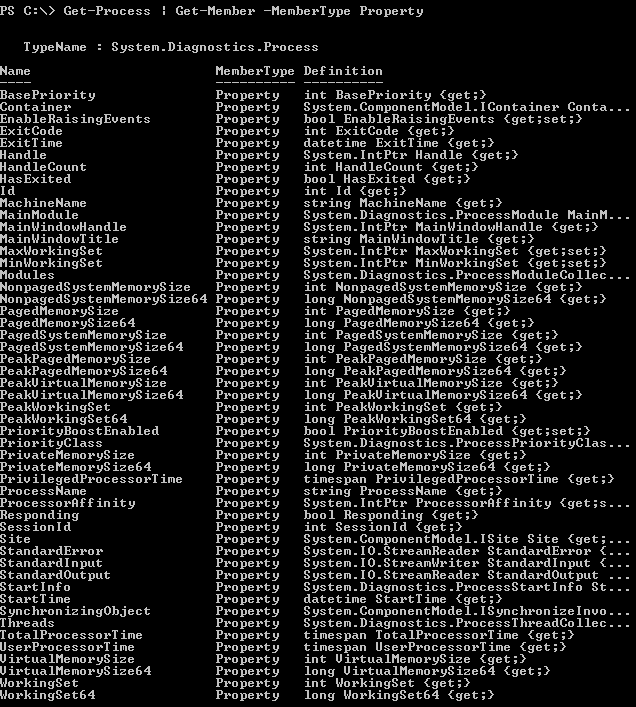
d’une commande à l’aide de l’option –MemberType Property , | Get-Member –MemberType Property
Get-Process | Get-Member -MemberType
Property
b)
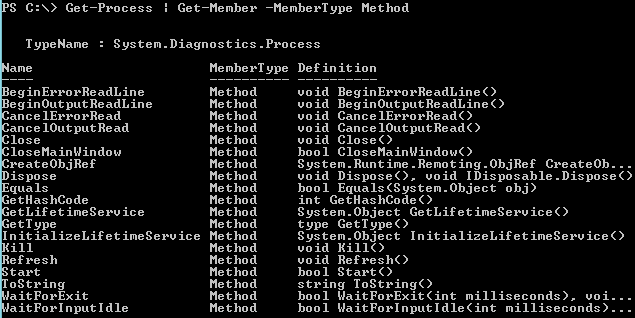
Afficher uniquement les méthodes d’une
commande à l’aide de l’option –MemberType
Method, |
Get-Member –MemberType
Method
Get-Process | Get-Member
-MemberType Method
7)
Format
de sortie, utilisation des
commandes Format-List, Format-Table
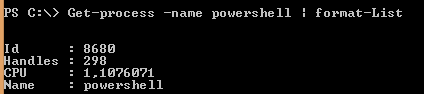
a) Format-List
Get-process –name powershell | format-List
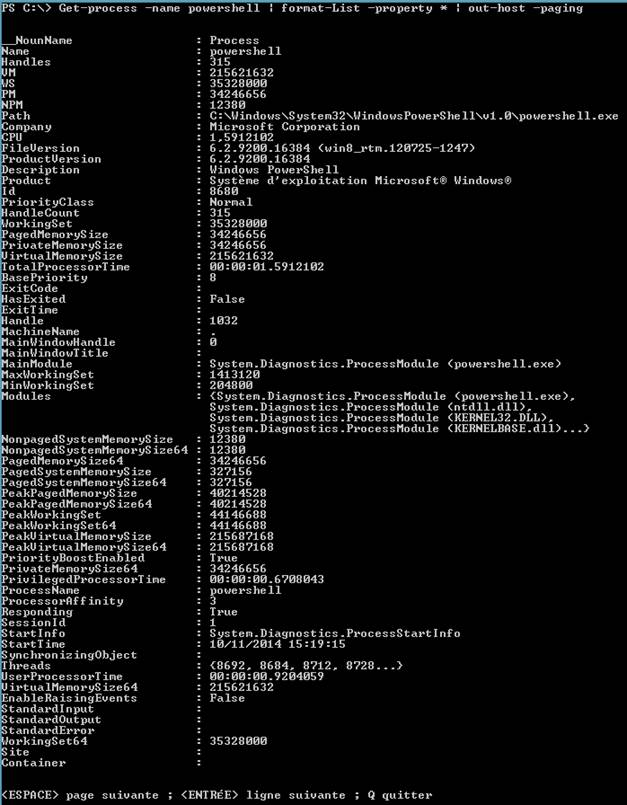
Get-process -name powershell | format-List -property * | out-host –paging
Get-process -name powershell | format-List -property
Processname,Id,Machinename

b) Format-Table
Get-process -name powershell | format-Table -property
Processname,Id,Machinename

Get-process -name powershell | format-Table -property
Company,Path,Id,Name –Autosize

Get-process -name powershell | format-Table -property
Company,Path,Id,Name –wrap

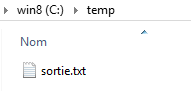
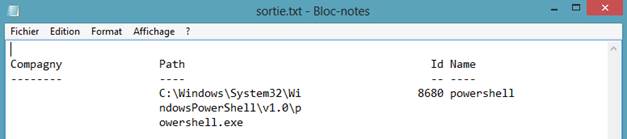
C) Rediriger la sortie vers un
fichier texte, utiliser la commande Out-File
Get-process -name powershell | format-Table -property
Company,Path,Id,Name –wrap
Out-file -FilePath c:\temp\sortie.txt

$a = Get-process
–name powershell

$a | Format-Table

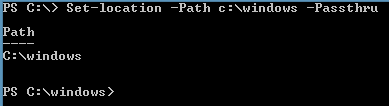
Set-location –Path c:\windows

Set-location –Path c:\windows –Passthru
$c = Set-location –Path c:\windows

Set-Location –Path ‘ c:\program Files ‘

10)
Créer
un Item à l’aide de New-Item
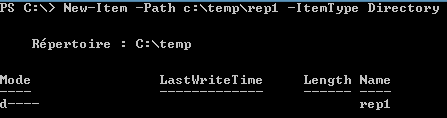
a) Créer un répertoire
New-Item –Path c:\temp\rep1 –ItemType Directory
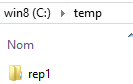
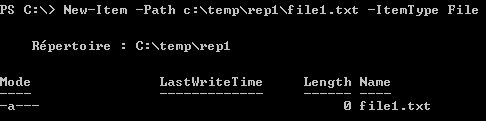
b) Créer un fichier
New-Item –Path c:\temp\rep1\file1.txt –ItemType File
c) Renommer un Item, Rename-Item
Rename-Item –Path c:\rep1\temp\file1.txt file2.txt

d) Déplacer un Item, Move-Item
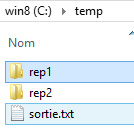
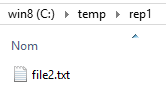
Move-Item –Path
c:\temp\rep1\file2.txt –Destination c:\temp\rep2\file2.txt -Passtrhru

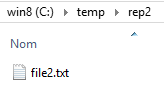
e) Supprimer un Item, Remove-Item
Remove-Item c:\temp\rep2\file2.txt

f) Appeler in Item, Invoke-Item
Invoke-Item c:\Windows

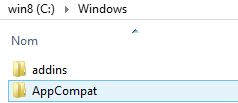
g) Lister
un contenu, Get-ChildItem
Get-ChildItem –Path c:\Windows -Recurse
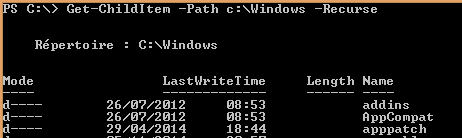
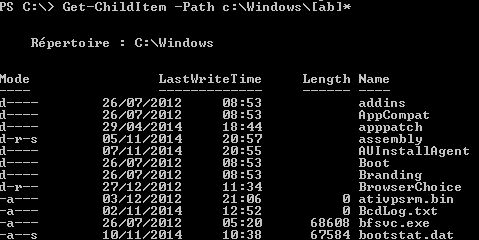
Get-ChildItem –Path c:\Windows\[ab]*
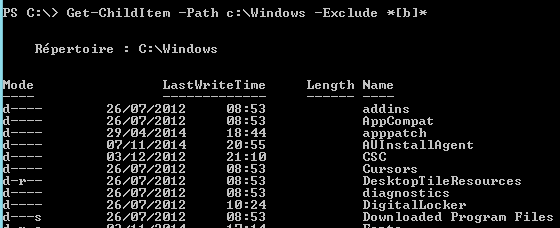
Get-ChildItem -Path c:\Windows -Exclude
*[b]*
12)
Les
lecteurs PowerShell, PSdrive
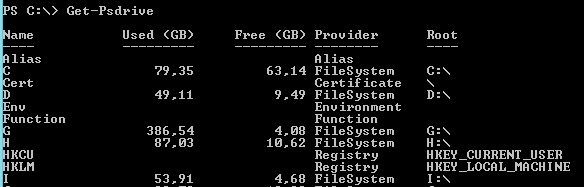
a) Lister les lecteurs PowerShell, Get-PsDrive
Get-PsDrive
b) Lister uniquement les lecteurs filesystem, Get-Psdrive -PsProvider filesystem
Get-Psdrive -PsProvider filesystem

c) Lister uniquement les lecteurs Registry, Get-Psdrive -PsProvider Registry
Get-Psdrive -PsProvider Registry

d) Se déplacer dans un lecteur Registry, Set-Location HKLM:\software
Set-Location HKLM:\software

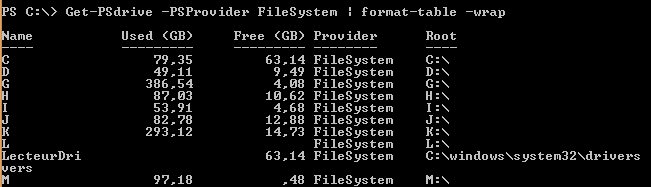
e) Créer un lecteur PSdrive,
New-PSDrive
New-PsDrive
–Name LecteurDrivers –PSProvider
FileSystem –Root ‘C:\windows\system32\drivers’

Get-PSdrive -PSProvider FileSystem | format-table -wrap
cd LecteurDrivers:

f) Supprimer un lecteur PSDrive
nouvellement créé, Remove-PsDrive –name
Remove-PsDrive –name LecteurDrivers

13)
Créer
un objet, New-Object
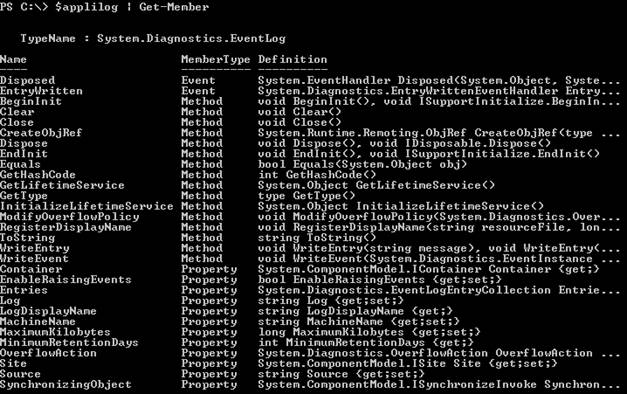
$applilog =
New-Object –TypeName System.Diagnostics.Eventlog
–ArgumentList System

$applilog
| Get-Member
$applilog
| Get-Member –MemberType properties *
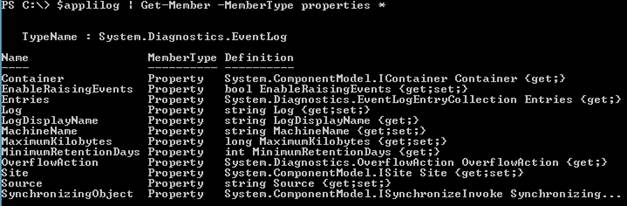
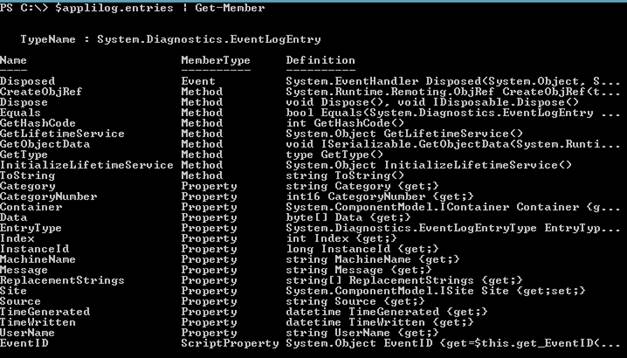
$applilog.entries
| Get-Member
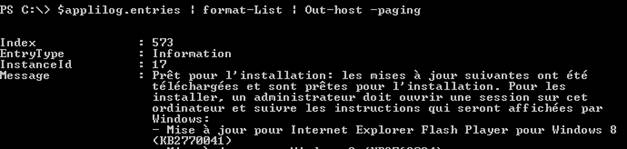
$applilog.entries | format-List | Out-host –paging
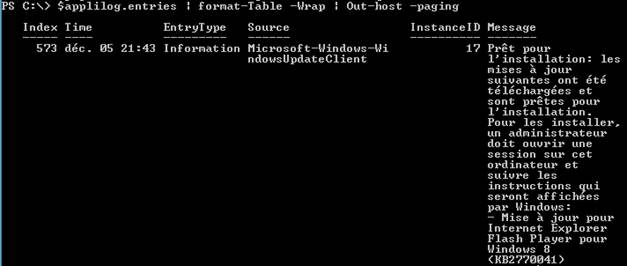
$applilog.entries | format-Table -Wrap | Out-host –paging
14) La commande
Where-Object –FilterScript
Where-Object –FilterScript { $_.propriété -operateur ‘’texte’’}
$_ correspond à l’objet lui-même
Les opérateurs sont :
-eq : égalité
-ne : différent
-lt : inférieur
-le : inférieur ou égal
-gt : supérieur
-ge : supérieur ou égal
-like : comme (exemple ‘’file.doc’’ –like ‘’f*.do ? ‘’)
-notlike : pas comme
-contains : contient (exemple 1.2,3 –contains 1)
-notcontains : ne contient pas
1,2,3,4,5 | Where-Object –FilterScript {$_ -lt 3}

1..100
| Where-Object -FilterScript
{$_ -lt 5}

Get-Process | Where-Object -FilterScript { $_.Responding -eq "true" }

Get-Process | Where-Object -FilterScript { $_.Responding -eq "false"
} | Stop-Process

15) La
commande Select-Object –property
Get-Process
| Select-Object -property Id, MachineName

16)
Les
objets WMI, WmiObject
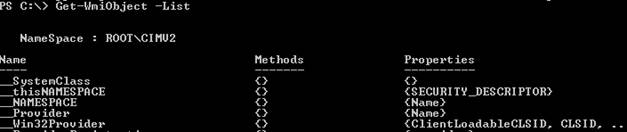
a) Lister les objets WMI, Get-WmiObject
–List
Get-WmiObject –List
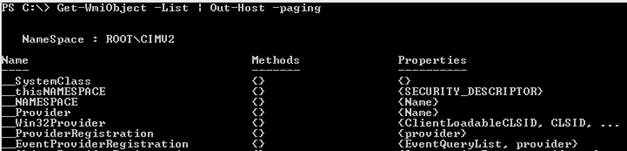
Get-WmiObject –List | Out-Host -paging

b)
Get-WmiObject –class
Win32_OperatingSystem –namespace root/cimV2
–computername .

c)
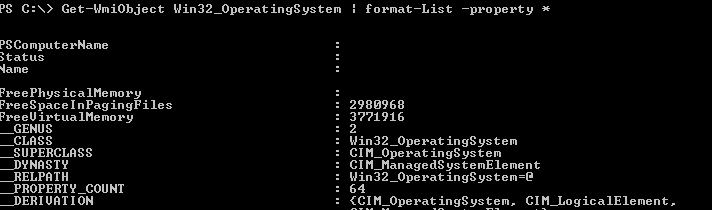
Get-WmiObject
Win32_OperatingSystem | format-List -property *
d) Lister les applications installées sur la
machine
Get-WmiObject -class win32_Product -computername . | out-host
–paging

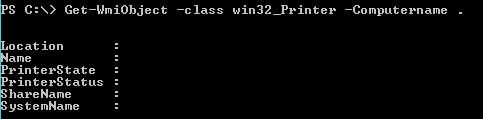
e) Lister les imprimantes installées sur la
machine
Get-WmiObject -class win32_Printer -Computername .
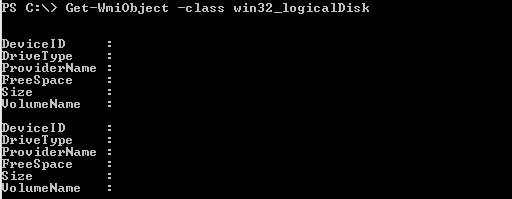
c) Lister les lecteurs logiques
Get-WmiObject -class win32_logicalDisk
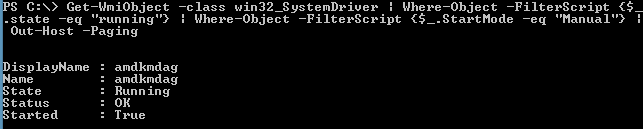
d) Lister les drivers
Get-WmiObject -class win32_SystemDriver | Where-Object –FilterScript
{$_.state –eq "running"} | Out-Host –Paging

Get-WmiObject -class win32_SystemDriver | Where-Object –FilterScript
{$_.state –eq "running"} | Where-Object –FilterScript {$_.StartMode –eq "Manual"} | Out-Host –Paging
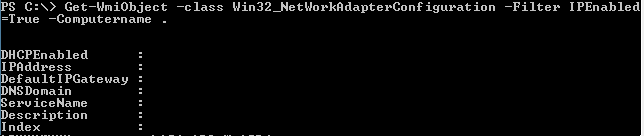
e) Visualiser les
information d’une adresse IP
Get-WmiObject -class Win32_NetWorkAdapterConfiguration -Filter IPEnabled=True -Computername .
f) Ping sur une adresse IP
Get-WmiObject -Class Win32_PingStatus -Filter "Address='127.0.0.1'"

g) Ping sur un ensemble d’adresse IP
1..254| ForEach-Object
-Process {Get-WmiObject
-Class Win32_PingStatus -Filter ("Address='192.168.1." + $_ + "'") -ComputerName .}
| Select-Object -Property Address,ResponseTime,StatusCode

17) Les Cmdlets
service
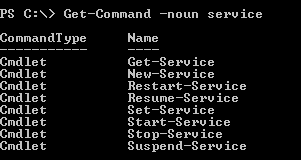
a) Lister toutes les commandes service
Get-Command -noun
service
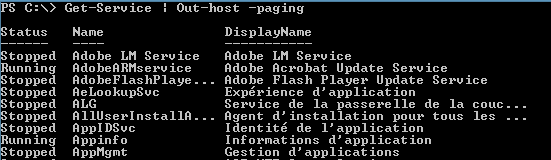
b) Lister tous les services
Get-Service | Out-host –paging
c) Arrêter un service, Stop-Service –name
Stop-Service -name
Spooler

d)
Démarrer un service, Start-Service –name

e)
Redémarrer un service, Restart-Service –name

Le PowerShell, c’est bien ça ! V1.0